GIMP handles photographs, Krita handles brush strokes
GIMP handles a photograph; Krita handles a brush stroke — and the code underneath each one explains why.
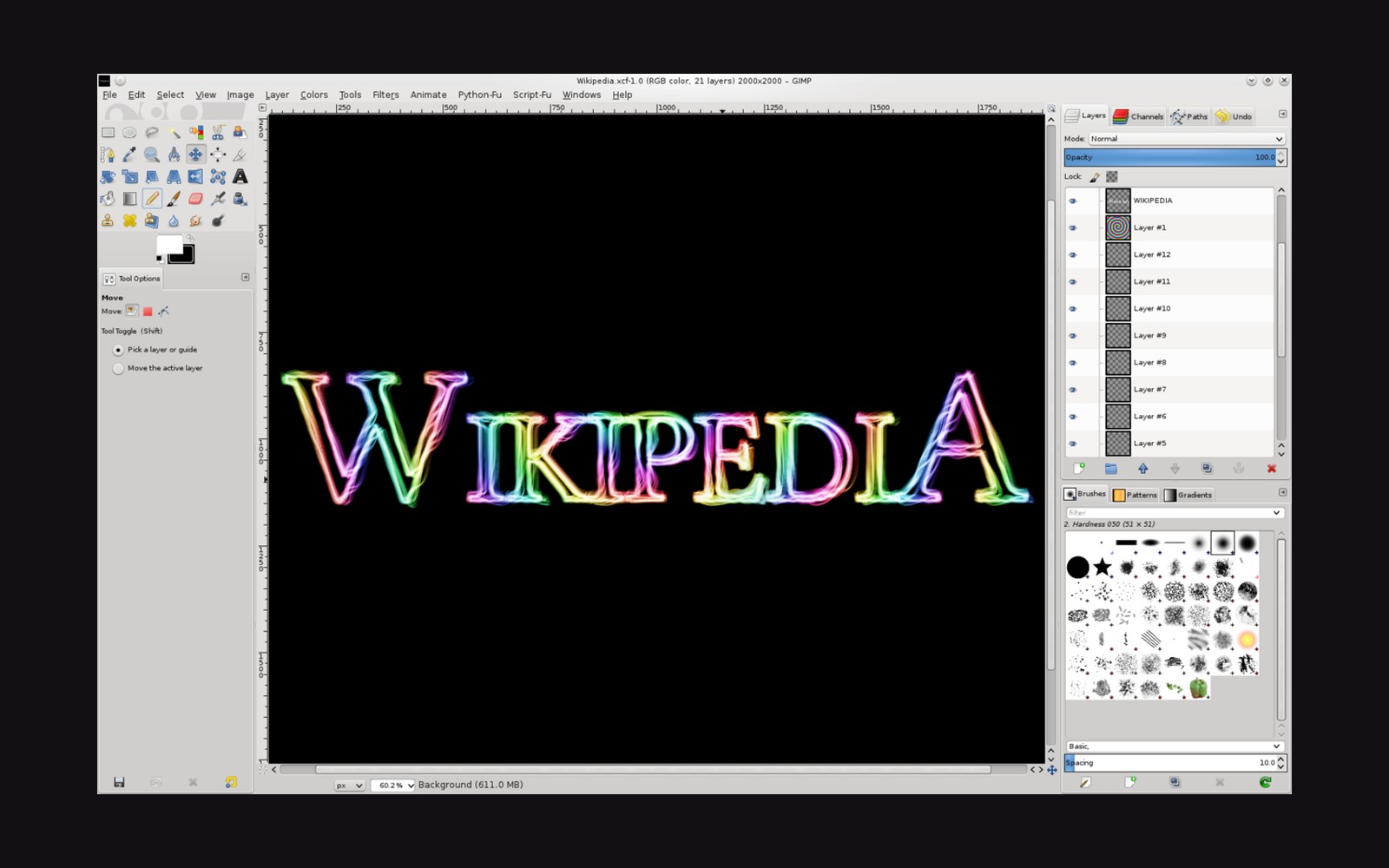
The editor that arrived first
GIMP — the GNU Image Manipulation Program — has been a free, open-source pixel editor since 1996, and that longevity shows in both its reach and its rough edges. The application runs on Linux, macOS and Windows, supports layers, masks, curves, levels, colour balance and a clone stamp, and can be scripted through Python or Script-Fu. For a photographer who needs to do something a raw converter will not — composite two frames, remove an object with a content-aware fill, export a web graphic at an exact pixel width — GIMP covers most of the ground.
What it does less elegantly is colour management at the working end of a pipeline. Until GIMP 2.10, released in 2018, the application had no high-bit-depth support at all; editing was locked to 8 bits per channel, which introduced banding and hue shifts the moment a curve moved more than a little. The 2.10 series added GEGL ↗-based processing with 16-bit and 32-bit options, and the forthcoming GIMP 3 release (in release candidate as of early 2025) moves the interface fully to GTK3. The improvement is real. The interface, though, remains one designed before every monitor had a high pixel density, and photographers coming from Lightroom Classic or Affinity Photo tend to find it effortful to navigate.
Still, for retouching, compositing and export work on photographs that have already come through a raw converter, GIMP is capable and genuinely costs nothing. The GIMP project page ↗ links only to the project's own builds — no installer from a third party is needed.
The one built for a brush
Krita's origin is different and the difference is visible in every panel. The application grew out of the KDE office suite project in the early 2000s and was redirected toward digital painting around 2004; its brush engine is what all the development attention went to, and it shows. Krita carries over 130 preset brush tips, each configurable through pressure, tilt, velocity, fade and rotation parameters. The stabiliser — a traced, smoothed input that catches hand tremor on a graphics tablet — works well enough that illustrators using a Wacom ↗ device or any other pressure-sensitive input find it the natural working environment on a zero budget.
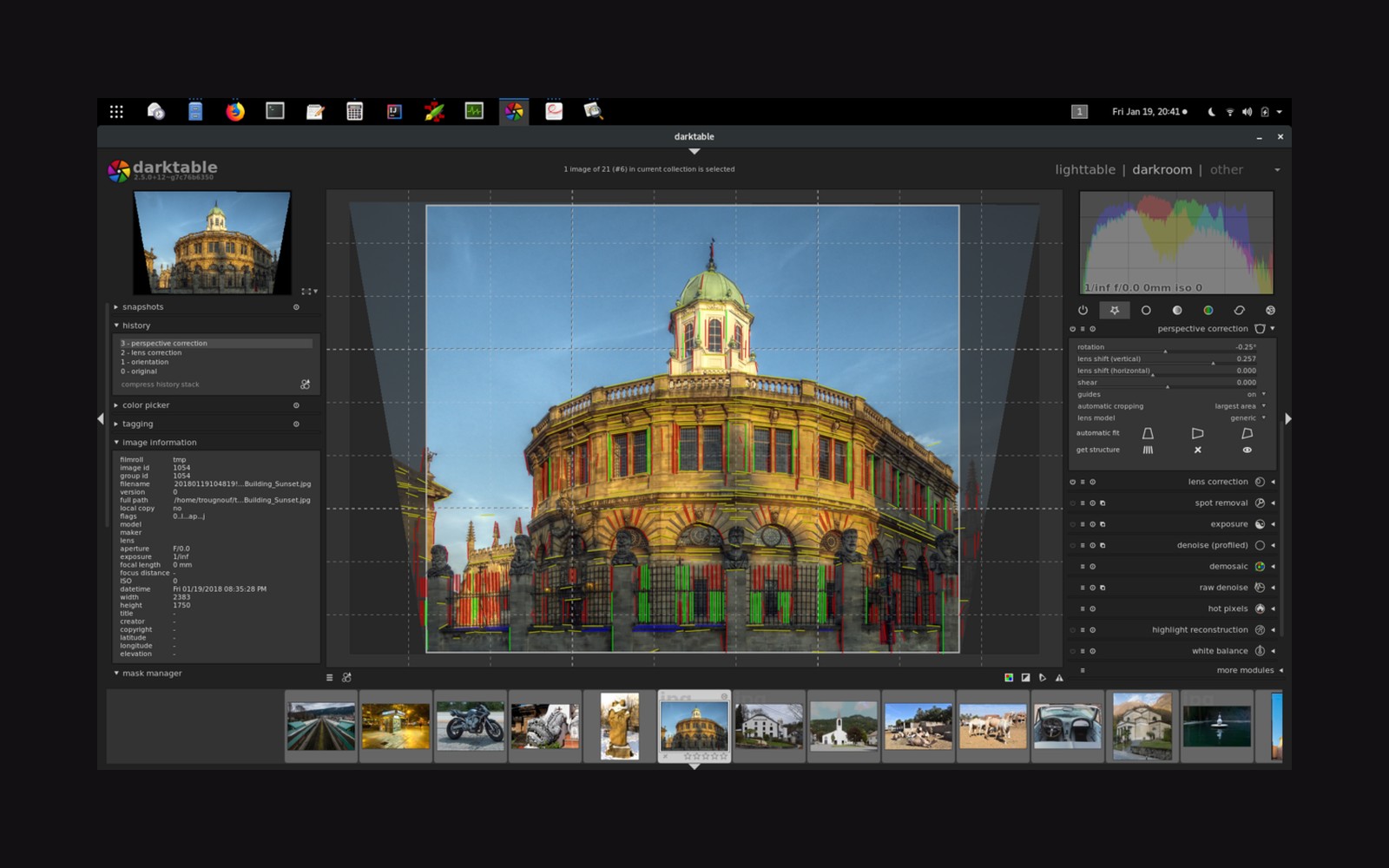
For a photographer, Krita is interesting in a narrower way. Its colour management is solid — it works in 16-bit integer or 32-bit float, reads and writes ICC profiles, and soft-proofs to a print profile in the way a photographer wants. The HDR painting mode ↗ that arrived in Krita 4.2 allows working with values above 1.0, which is increasingly relevant as Display P3 monitors become the consumer standard. The histogram and curves tools are present and functional. What is nearly absent is serious raw processing — Krita opens DNG and other raw files through a plugin that hands them to libraw, but the conversion controls are minimal; raw work belongs upstream, in darktable or a similar converter, before the file arrives in Krita.
Where each one fits
The tools are not competitors for the same user. GIMP is a general-purpose pixel editor that does most of what a photographer asks of that category — compositing, precise selections, export scripting — even if the interface asks for patience. Krita is a painting application that happens to have good colour management, and a photographer who also sketches, paints textures, or builds composite backgrounds by hand will find the brush engine alone worth the install. Both are free, both are actively maintained with public development repositories, and neither route involves a subscription or a workaround.
The practical advice is simple: if the job is photograph-shaped, GIMP; if the job involves drawing or painting on top of photograph-shaped material, Krita. Many photographers who do serious compositing keep both open.